SETUP GUIDE
Chord Craft VST Setup Guide
Chord Craft is a VST3 instrument (plus a standalone app). On both Windows and Mac, install it with the installer first, then add it to a track in your DAW. Because getting the MIDI into your project works differently per host, the guide is split into Cubase and Ableton.
STEP 1 — INSTALL
Install first
Normally you just run the installer. It puts both the VST3 plugin and the standalone app in the right place automatically, so there is no folder hunting or copying. Choose your OS.
Install with the installer (recommended)
- 1. Get the Windows installer from the download page.
- 2. Run the downloaded
Setup.exeand follow the on-screen instructions. - 3. When it finishes, restart your DAW. Chord Craft appears in the plugin list.
The VST3 is placed in the correct location (C:\Program Files\Common Files\VST3\)
and the standalone app in the Start menu automatically. On PCs without the WebView2 runtime,
which the UI needs, the installer sets that up too.
If you don't want to or can't use the installer (portable ZIP, manual install)
Extract the portable ZIP and manually copy the Chord Craft.vst3 inside it
to the following VST3 folder.
PLACE HERE
C:\Program Files\Common Files\VST3\
- ・
Chord Craft.vst3is a “bundle” that is actually a folder. Copy the whole folder. - ・Copying may require administrator rights.
- ・Restart your DAW after copying and it will rescan automatically.
⚠ Common mistake
C:\Program Files\Steinberg\VstPlugins is a legacy
VST2-only folder. Chord Craft is VST3 only, so it
will not be detected there. Always use
Common Files\VST3 above.
If you can't copy without administrator rights: in Ableton Live you can set a
VST3 custom folder under Preferences > Plug-Ins.
Put the .vst3 in any folder you can write to and
register that folder.
The standalone app, Chord Craft.exe in the ZIP,
runs as is (no installation needed). If the UI is completely white, the WebView2
runtime may be missing (the installer sets it up automatically).
Install with the installer (recommended)
- 1. Get the macOS
installer (
.pkg) from the download page. - 2. Open the downloaded
.pkgand follow the on-screen instructions. - 3. When it finishes, restart your DAW. Chord Craft appears in the plugin list.
The VST3 is placed in the correct location (/Library/Audio/Plug-Ins/VST3)
and the standalone app in the Applications folder automatically.
No need to dig for the hidden Library folder or wrestle with permissions.
If you don't want to or can't use the installer (portable ZIP, manual install)
Extract the portable ZIP and manually copy the Chord Craft.vst3 inside it
to one of the following VST3 folders.
PLACE HERE — your account only (no admin rights needed; pick this if unsure)
~/Library/Audio/Plug-Ins/VST3
PLACE HERE — all users (requires admin rights)
/Library/Audio/Plug-Ins/VST3
Cubase and Ableton detect it in either location. The “all users” folder is the Library at the root of the startup disk, a root-owned system folder, so you may be asked for an administrator password when copying. If permissions get in the way, use “your account only” (the Library inside your home folder).
The Library folder is hidden in Finder by default. From Finder's menu bar choose
Go > Go to Folder (Shift + Cmd + G) and enter
~/Library/Audio/Plug-Ins/VST3 for your account only, or
/Library/Audio/Plug-Ins/VST3 for all users.
On a Mac that has never had another VST3 plugin installed, the Plug-Ins folder may
not contain a VST3 folder yet.
In that case create a new folder named VST3 and copy
Chord Craft.vst3 into it
(on the “your account only” side you can create it without being asked for permissions).
- ・
Chord Craft.vst3is a “bundle” that is actually a folder. Copy the whole folder. - ・Restart your DAW after copying and it will rescan automatically.
⚠ Common mistake
/Library/Audio/Plug-Ins/VST/ (the folder without the trailing “3”) is a legacy
VST2-only folder. Plugins there will not be detected.
Always use the folder ending in VST3.
The standalone app, Chord Craft.app in the ZIP, can be placed anywhere you like,
such as the Applications folder, and launched as is.
STEP 2 — YOUR DAW
Add to your DAW (Cubase, Ableton Live)
Choose your DAW to show only its steps.

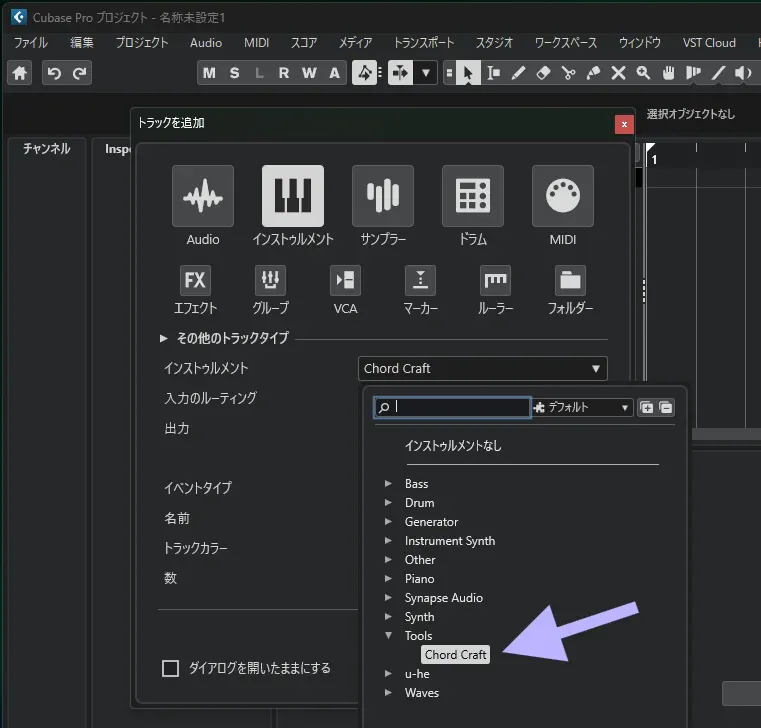
In Cubase, load Chord Craft on an instrument track and bring the committed progression in by recording it or by MIDI drag.
- 1
Load it on an instrument track
Choose Chord Craft from Project > Add Track > Instrument. It does not appear in audio Insert slots (it is an instrument, i.e. a VSTi).
- 2
Choose the key
Set your song's key with Key at the bottom. Presets are voiced in that key.
- 3
Find a progression and commit it
Search and click to audition, then commit with Enter / double-click / “Use this progression”.
- 4
Bring in the MIDI (two ways)
Play and record: on playback the committed progression loops from the start of the bar, so record it to a track.
Drag export: drag “⠿ Drag MIDI” at the bottom onto a MIDI / instrument track to place a.mid.
Audition through a host instrument (optional)
By default, auditions use the built-in sound. Turn on “Host preview” at the bottom to play auditions as the plugin's live MIDI output. To hear them with a real instrument:
- 1. Route Chord Craft's MIDI output to the instrument track you want to play.
- 2. Enable monitoring / record-enable on that destination track.
You can loop-audition with the real instrument even while stopped. When it's off, the built-in sound plays, so you can audition without any routing. For even more reliable playback you can also use “Play through your host's instruments” below (loopMIDI on Windows / IAC Driver on Mac).

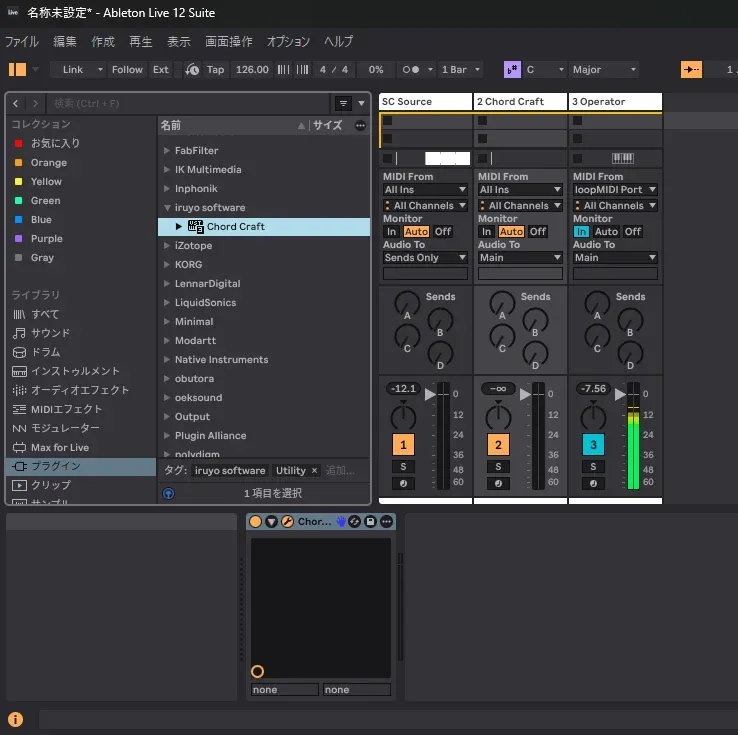
Ableton can't host VST3 MIDI effects, so use the Instrument version + MIDI routing (the same two-track method as Scaler / Cthulhu). Chord Craft plays an instrument on another track.
* First make sure VST3 is enabled and scanned under Preferences > Plug-Ins.
- 1
Track 2: load Chord Craft
Load the Instrument version of Chord Craft on a track.
- 2
Track 3: load the instrument you want to hear
Set up the instrument that actually makes the sound, such as Operator or any VSTi, on a separate track.
- 3
Point track 3's MIDI input at Chord Craft
On track 3 set MIDI From > “2-Chord Craft” and the field below to “Chord Craft” (the plugin's MIDI output).
- 4
Set track 3's monitor to “In”
Set track 3's monitor to In and Chord Craft on track 2 drives track 3's instrument directly.
Reliable auditioning while stopped (via loopMIDI)
Ableton sometimes can't reliably receive a VST's generated MIDI output through internal routing (especially while stopped). A virtual MIDI port (loopMIDI on Windows / IAC Driver on Mac) makes it reliable. See “Play with real instrument sounds” below for setup.
COMMON — PLACE ON A TRACK
Place the progression on a track (Cubase / Ableton)
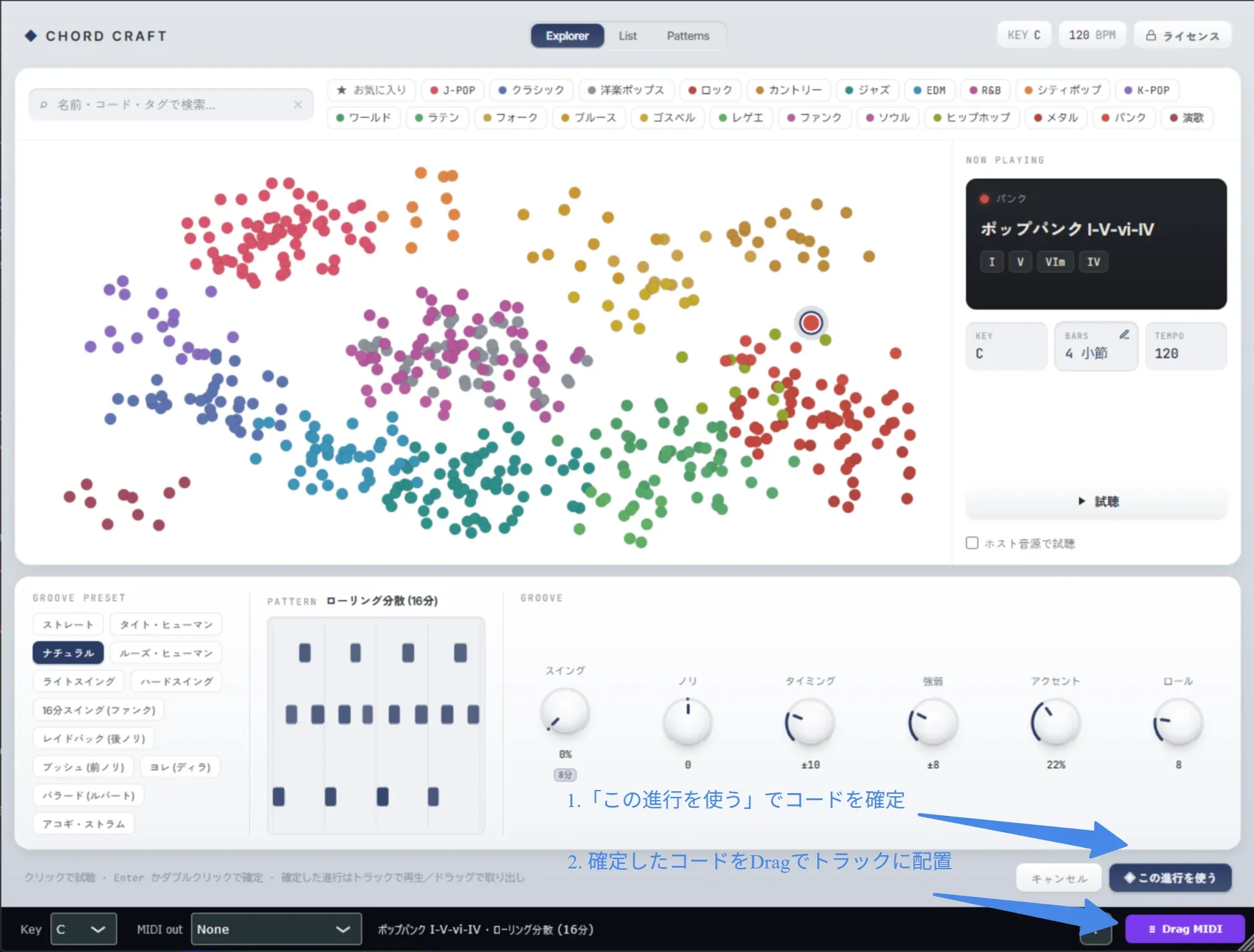
Once you commit a progression, you can drag its MIDI onto a track. It works the same in every DAW.
- 1
Commit the chords with “Use this progression”
Commit the selected progression with “◆ Use this progression” at the bottom right (or Enter / double-click).
- 2
Drag “⠿ Drag MIDI” onto a track
Drag “⠿ Drag MIDI” at the bottom onto a MIDI / instrument track and the committed progression is placed as a
.mid.
OPTIONAL — HOST SOUND
Play through your host's instruments (optional)
This setup is not required. Chord Craft plays its own built-in sound out of the box, so you can audition and check everything without configuring anything.
Only if you want to hear your own synths or instruments, set up a virtual MIDI port. It doesn't depend on the host's internal routing and plays real instrument sounds even while playback is stopped. The tool depends on your OS: the free loopMIDI on Windows, and the IAC Driver built into macOS on Mac (no extra software). Choose your OS.
- 1
Create a port in loopMIDI
Install the free loopMIDI and create a port (e.g.
ChordCraft). - 2
Select that port in the plugin's “MIDI out”
Select the
ChordCraftport you created in “MIDI out” at the bottom of Chord Craft. - 3
Turn on “Host preview”
Turn on “Host preview” at the bottom of the UI.
- 4
Set the instrument track's input to that port
Set the instrument track's MIDI From to the
ChordCraftport and Monitor In. Progressions play with the real instrument even while stopped.
On Mac, virtual MIDI ports are built into the OS, so no extra software like loopMIDI is needed. Use the IAC Driver in Audio MIDI Setup.
- 1
Enable an IAC Driver port
Open macOS's built-in Audio MIDI Setup (Applications > Utilities) and choose Window > Show MIDI Studio. Double-click IAC Driver and check Device is online to get a port (e.g.
IAC Bus 1). No extra software to install. - 2
Select that port in the plugin's “MIDI out”
Select the enabled
IAC Bus 1port in “MIDI out” at the bottom of Chord Craft. - 3
Turn on “Host preview”
Turn on “Host preview” at the bottom of the UI.
- 4
Set the instrument track's input to that port
Set the instrument track's MIDI From to the
IAC Bus 1port and Monitor In. Progressions play with the real instrument even while stopped.
Because it arrives as ordinary external MIDI input, it isn't affected by bugs in the host's VST3 MIDI output. The selected port is saved with the project. Turn “Host preview” off to return to the built-in sound at any time.
TROUBLESHOOTING
Troubleshooting
Chord Craft doesn't appear in the plugin list
The most reliable fix is to reinstall with the installer (it places everything in the correct location). For a manual (ZIP) install, check that the .vst3 is in a VST3 folder. On Windows, C:\Program Files\Steinberg\VstPlugins is a legacy VST2-only folder and plugins there are not detected. The correct location is C:\Program Files\Common Files\VST3\. On Mac, use either /Library/Audio/Plug-Ins/VST3 (all users, requires admin rights) or ~/Library/Audio/Plug-Ins/VST3 (your account only, no admin rights needed). Restart the host after copying and rescan.
I can't find it in the audio inserts
Chord Craft is an instrument (VSTi). It appears in the instrument list under Add Instrument Track, not in an audio track's inserts.
No sound after loading it
Chord Craft makes sound on its own with its built-in sound. First check that clicking a progression auditions it. If your own instrument stays silent with “Host preview” on, see “Play through your host's instruments (loopMIDI on Windows / IAC Driver on Mac)”.
In Ableton I can't put it before an instrument as a MIDI effect
Ableton (and Cubase) can't host VST3 MIDI effects. Use Chord Craft as the Instrument version + MIDI routing (the same method as Scaler / Cthulhu). See the Ableton steps on this page.
If that doesn't solve it, please contact us (form in Japanese).